-
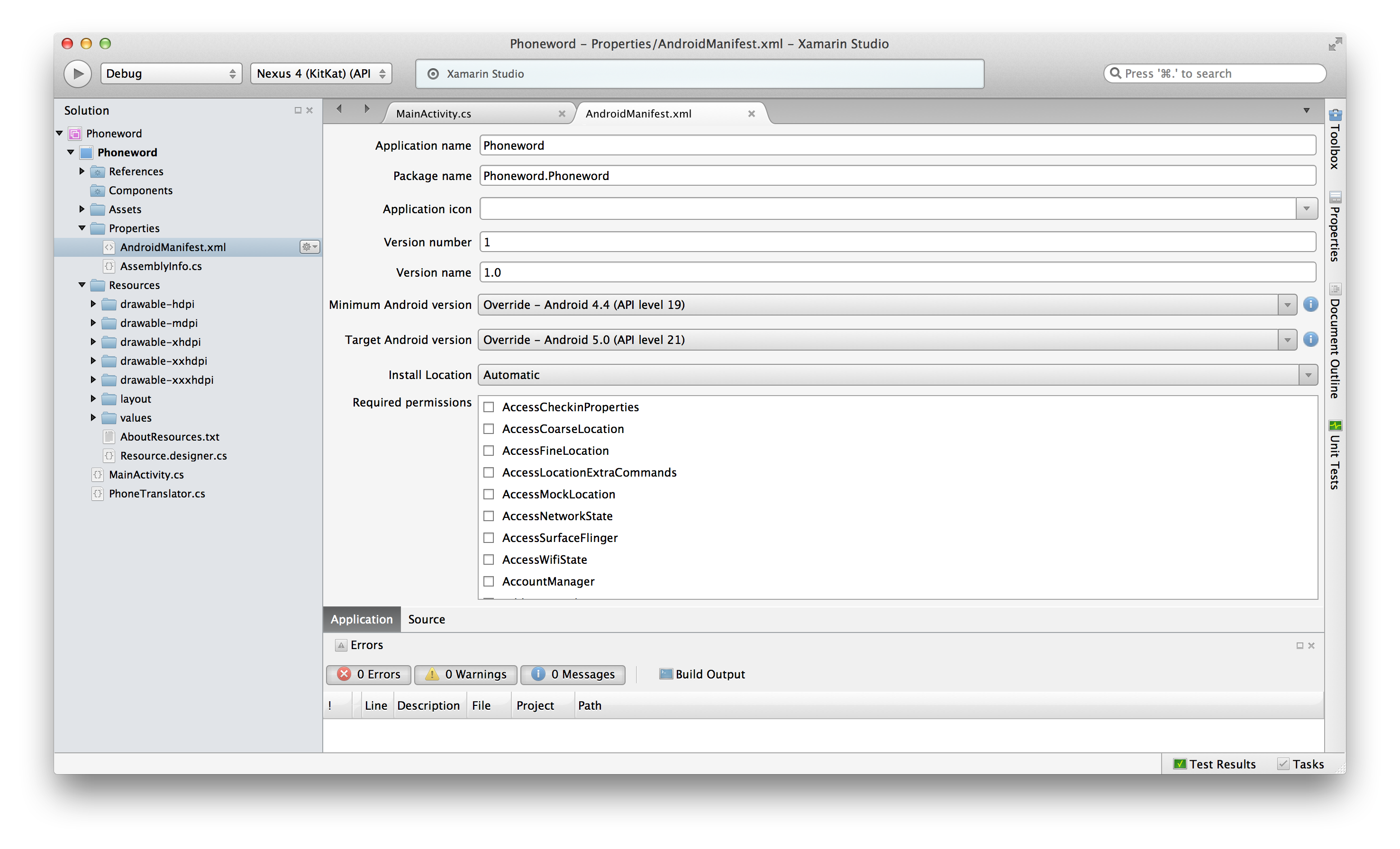
Let’s open the Phoneword project in Xamarin Studio:
-
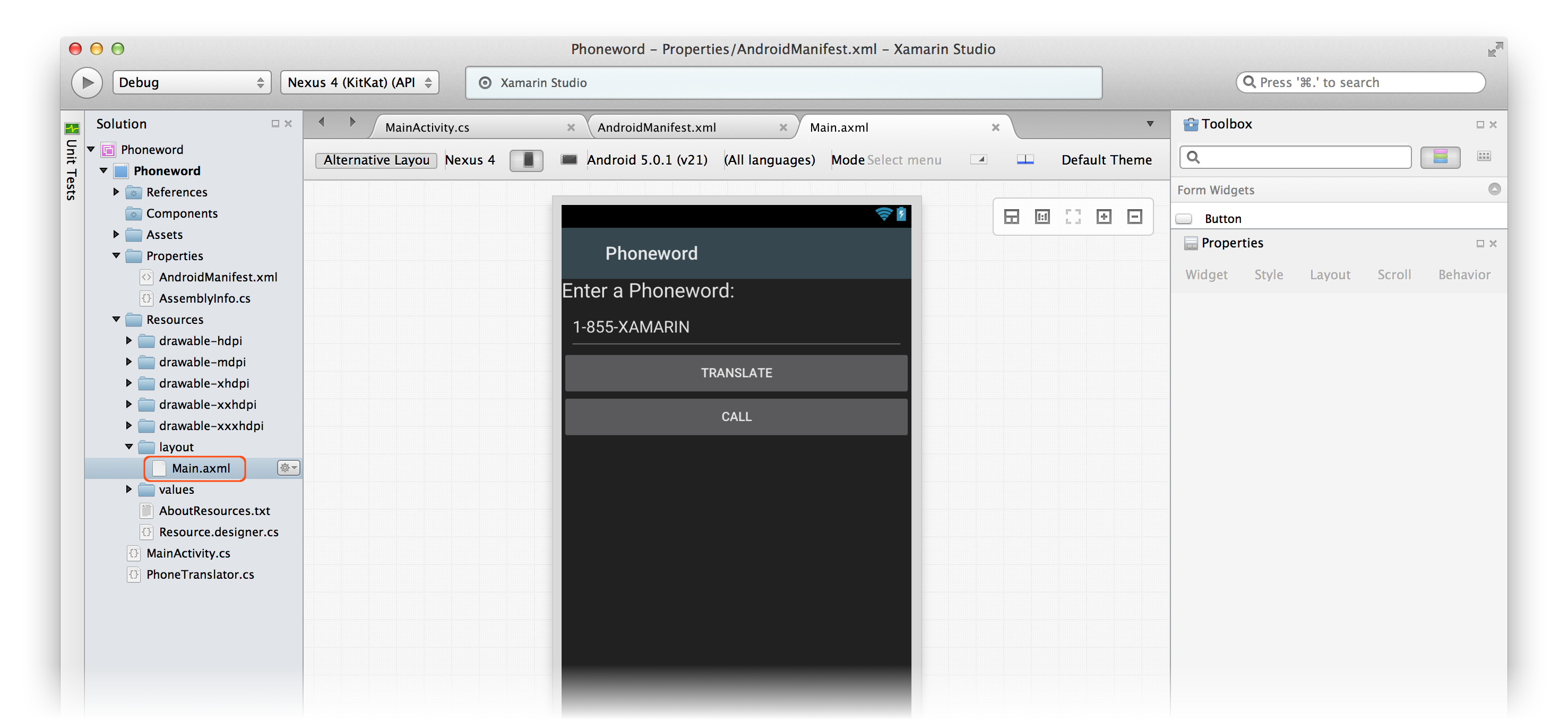
Let’s start by editing the user interface. Open the Main.axml file from the Solution Pad:
-
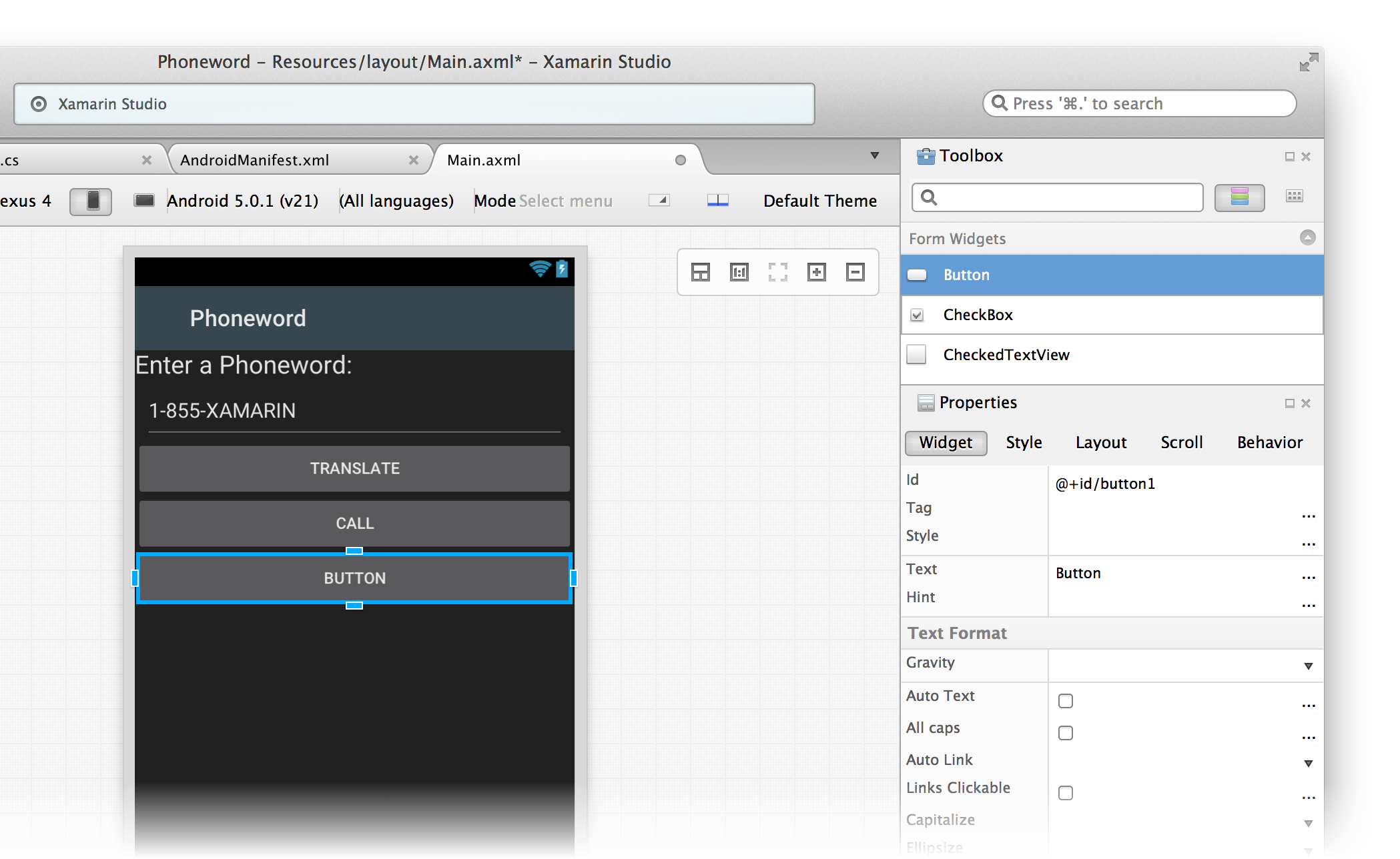
From the Toolbox, drag a Button onto the design surface and place it below the Call button:
-
In the Properties Pad, change the button Id to
@+id/CallHistoryButton: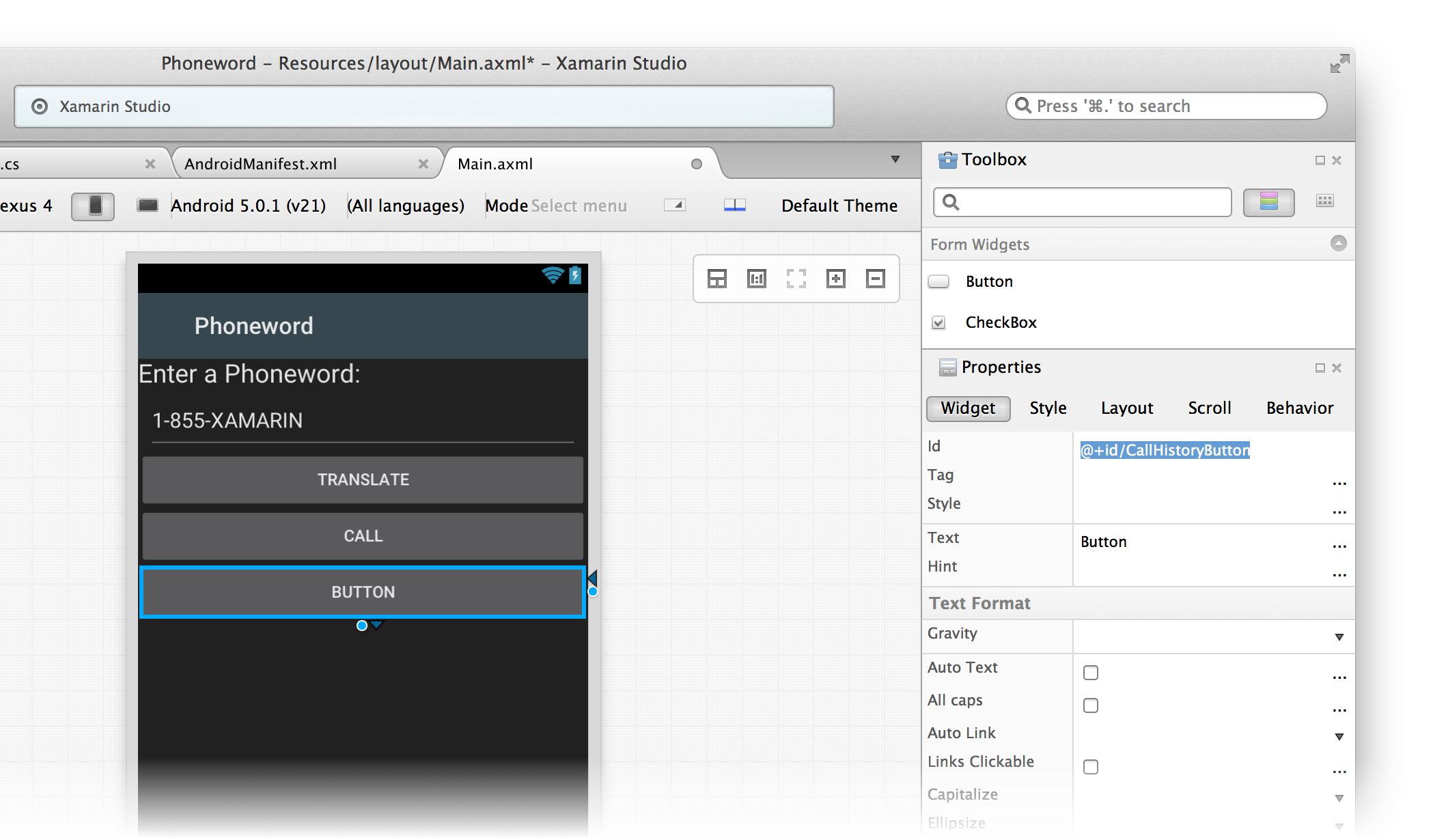
-
Let’s set the Text property of the button to
@string/callHistory. The Android Designer will interpret this literally, but we’re going to make a few changes so that the button's text shows up correctly: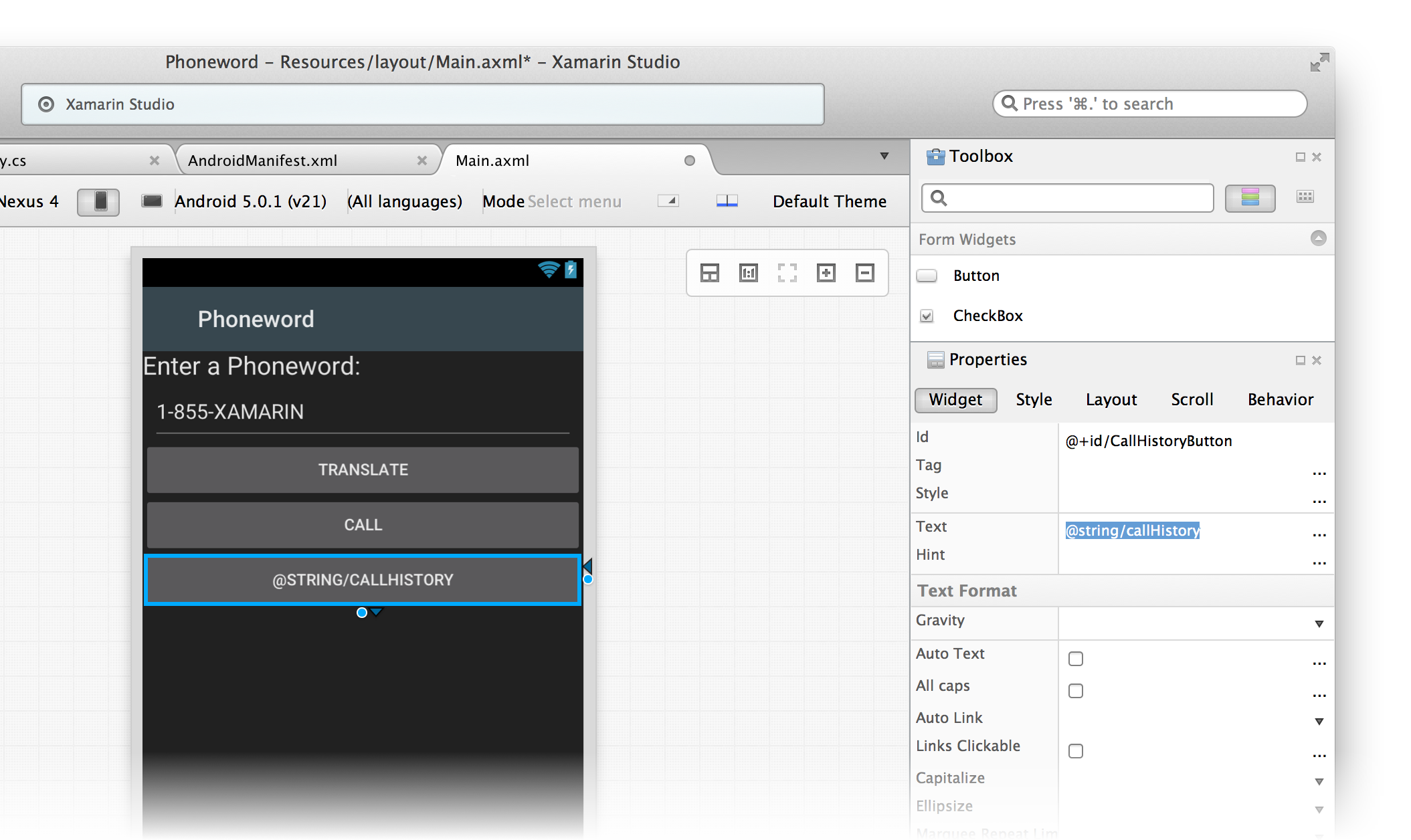
-
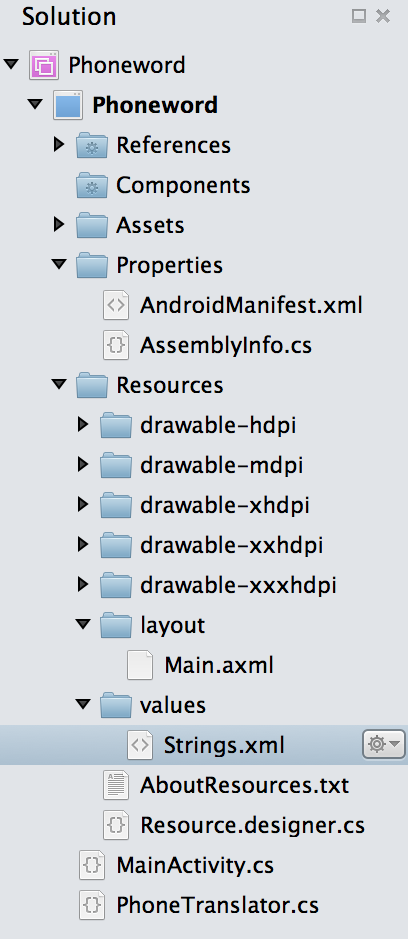
Expand the values node under the Resources folder in the Solution Pad and double-click the string resources file, Strings.xml:
-
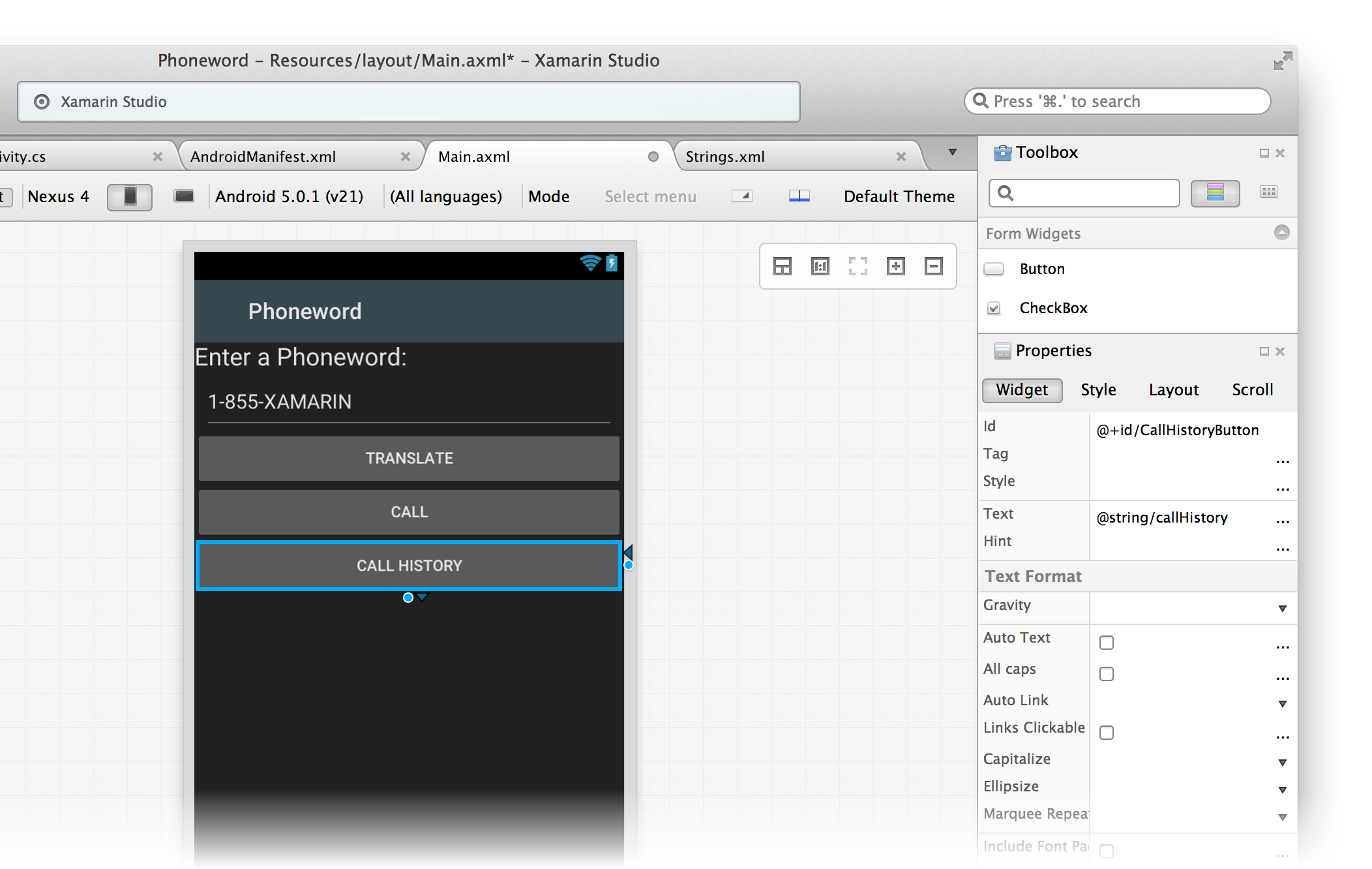
Add the
callHistorystring name and value to the Strings.xml file and save it:<?xml version="1.0" encoding="utf-8"> <resources> <string name="callHistory">Call History</string> </resources>The Call History button text should update to reflect the new string value:
-
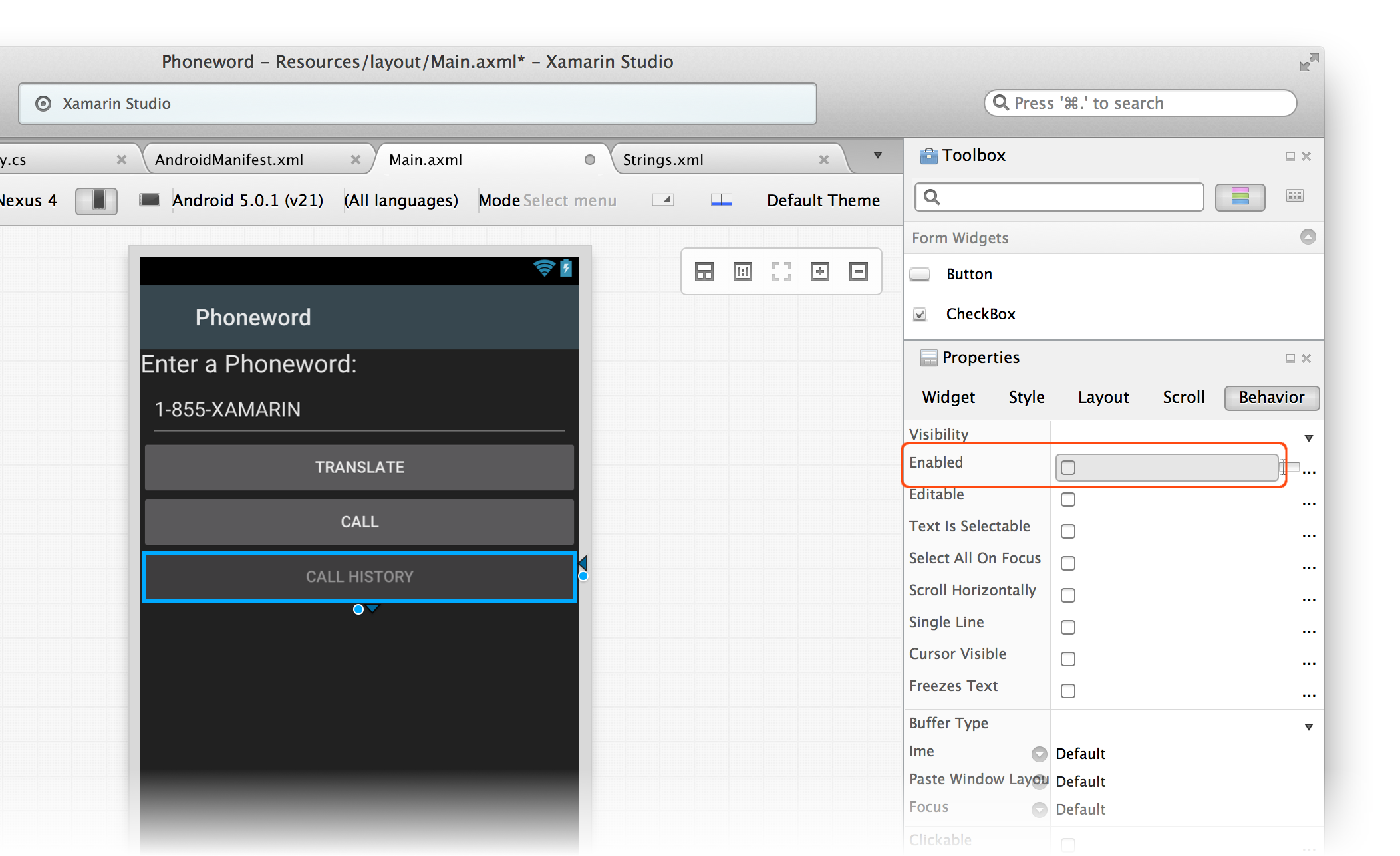
With the Call History button selected on the design surface, open the Behavior tab in the Properties Pad and double-click the Enabled checkbox to disable the button. This will cause the button to become darker on the design surface:
-
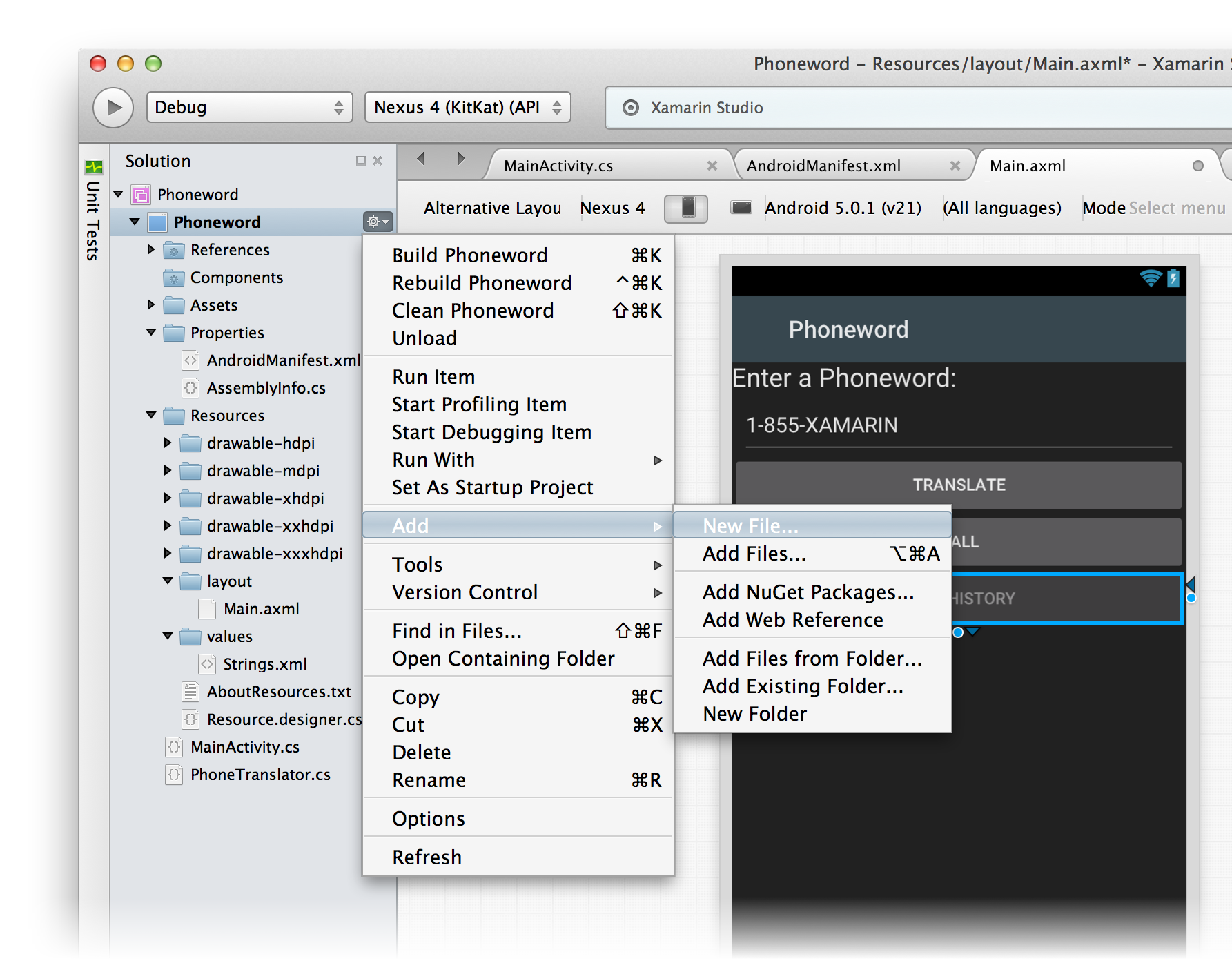
Let’s create a second Activity to power the second screen. In the Solution Pad, click the gray gear icon next to the Phoneword project and choose Add > New File...:
-
From the New File dialog, choose Android > Activity and name the Activity
CallHistoryActivity: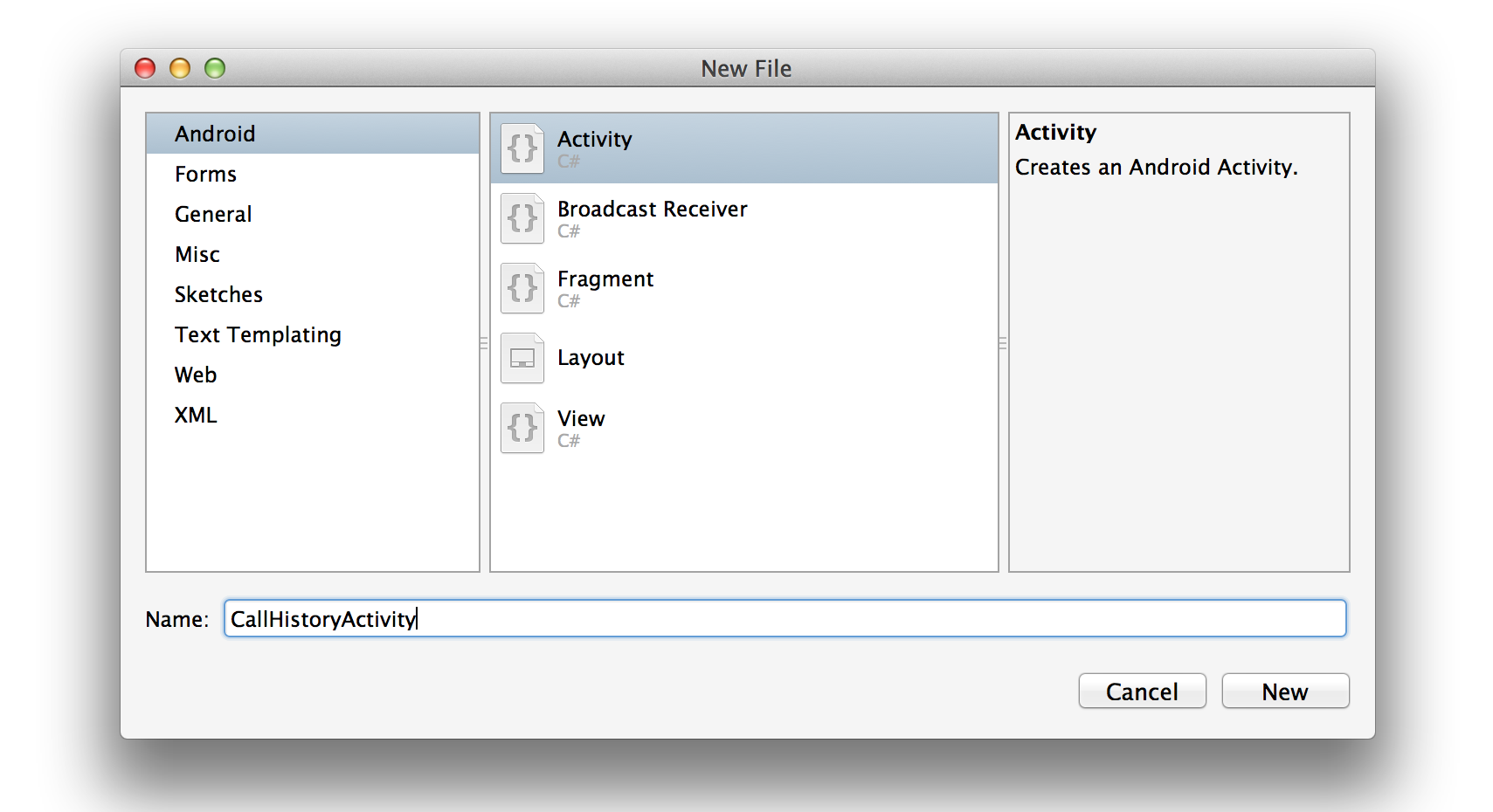
-
Replace the template code in
CallHistoryActivitywith the following:using System; using System.Collections.Generic; using Android.App; using Android.OS; using Android.Widget; namespace Phoneword { [Activity(Label = "@string/callHistory")] public class CallHistoryActivity : ListActivity { protected override void OnCreate(Bundle bundle) { base.OnCreate(bundle); // Create your application here var phoneNumbers = Intent.Extras.GetStringArrayList("phone_numbers") ?? new string[0]; this.ListAdapter = new ArrayAdapter<string>(this, Android.Resource.Layout.SimpleListItem1, phoneNumbers); } } }In this class, we're creating a
ListActivityand populating it programmatically, so we don’t need to create a new layout file for this Activity. We’ll discuss this in more detail in the Hello, Android Multiscreen Deep Dive . -
In our app, we’re going to collect phone numbers that the user has dialed on the first screen and then pass them to the second screen. We’re going to store the phone numbers as a list of strings. To support lists, add the following
usingdirective to the top of theMainActivityclass:using System.Collections.Generic;Next, let’s create an empty list that we can fill with phone numbers. Our
MainActivityclass will look like this:[Activity(Label = "Phoneword", MainLauncher = true, Icon = "@drawable/icon")] public class MainActivity : Activity { static readonly List<string> phoneNumbers = new List<string>(); ...// OnCreate, etc. } -
Let’s wire up the Call History button. In the
MainActivityclass, add the following code to register and wire up the button:Button callHistoryButton = FindViewById<Button> (Resource.Id.CallHistoryButton); callHistoryButton.Click += (sender, e) => { var intent = new Intent(this, typeof(CallHistoryActivity)); intent.PutStringArrayListExtra("phone_numbers", phoneNumbers); StartActivity(intent); }; -
We want to extend the Call button's functionality to add a phone number to the list of numbers and enable the Call History button whenever the user dials a new number. Let’s change the code of the Neutral Button in our Alert Dialog to reflect that:
callDialog.SetNeutralButton("Call", delegate
{
    // add dialed number to list of called numbers.
    phoneNumbers.Add(translatedNumber);
    // enable the Call History button
    callHistoryButton.Enabled = true;
    // Create intent to dial phone
    var callIntent = new Intent(Intent.ActionCall);
    callIntent.SetData(Android.Net.Uri.Parse("tel:" + translatedNumber));
    StartActivity(callIntent);
});
Save and build the application to make sure there are no errors.
-
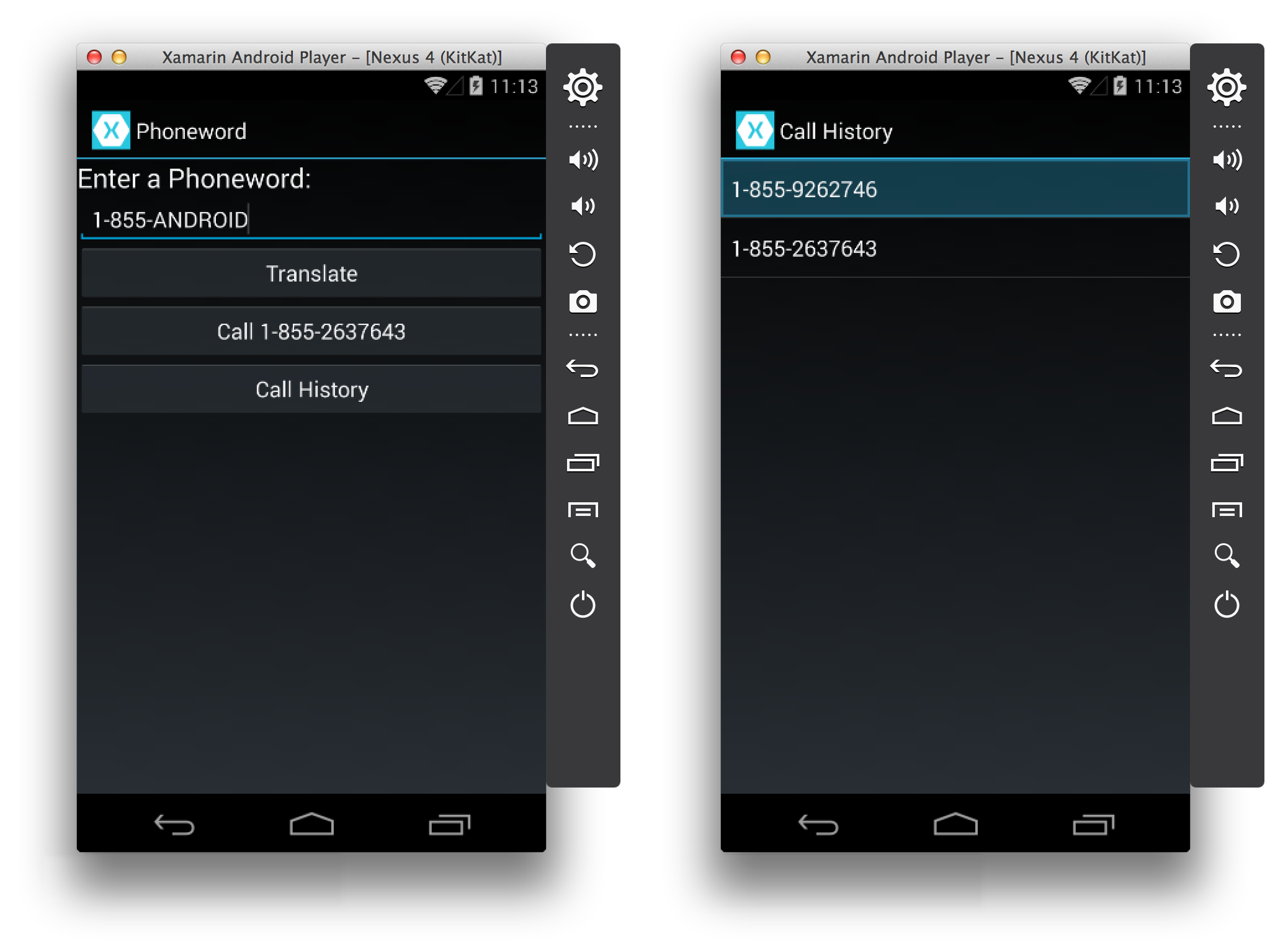
Deploy the application to an emulator or device. The following screenshots illustrate the Phoneword application running in the Xamarin Android Player: