 James Montemagno
8437b70aa9
Demo 3- don't sync automatically.
James Montemagno
8437b70aa9
Demo 3- don't sync automatically.
|
10 years ago | |
|---|---|---|
| .. | ||
| DevDaysTasks | 10 years ago | |
| DevDaysTasks.Droid | 10 years ago | |
| DevDaysTasks.UWP | 10 years ago | |
| DevDaysTasks.iOS | 10 years ago | |
| images | 10 years ago | |
| DevDaysTasks.sln | 10 years ago | |
| README.md | 10 years ago | |
README.md
Azure Tasks
This is a small sample application showing how easily add backend using Azure Mobile Apps to a Xamarin Application.
Built with C# 6 features, you must be running VS 2015 or Xamarin Studio to compile.
Built with Xamarin.Forms with support for:
- iOS
- Android
- UWP
Setup
There are a few steps to setup this application.
Azure Account
Please signup or sign into your azure account at http://www.azure.com
Access Azure Portal
Head to http://portal.azure.com
Create new Azure Mobile App Quick Start
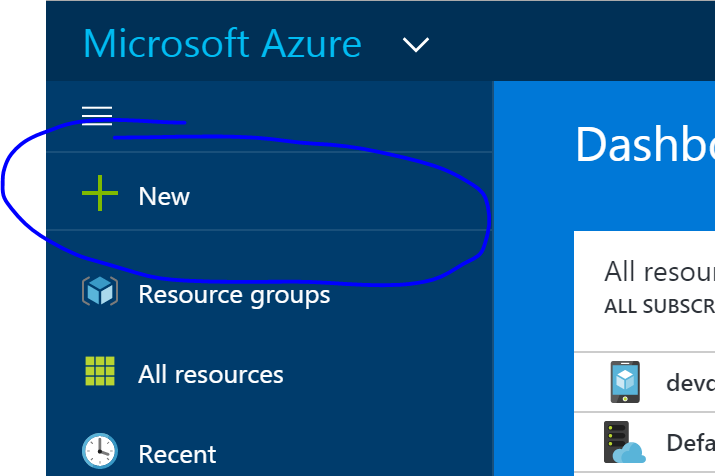
Click on the New button
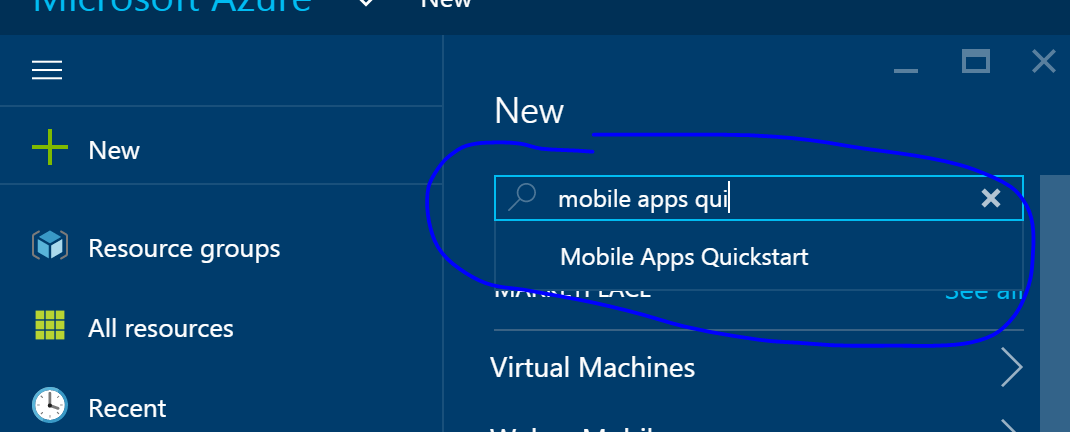
Search for Mobile Apps Quickstart
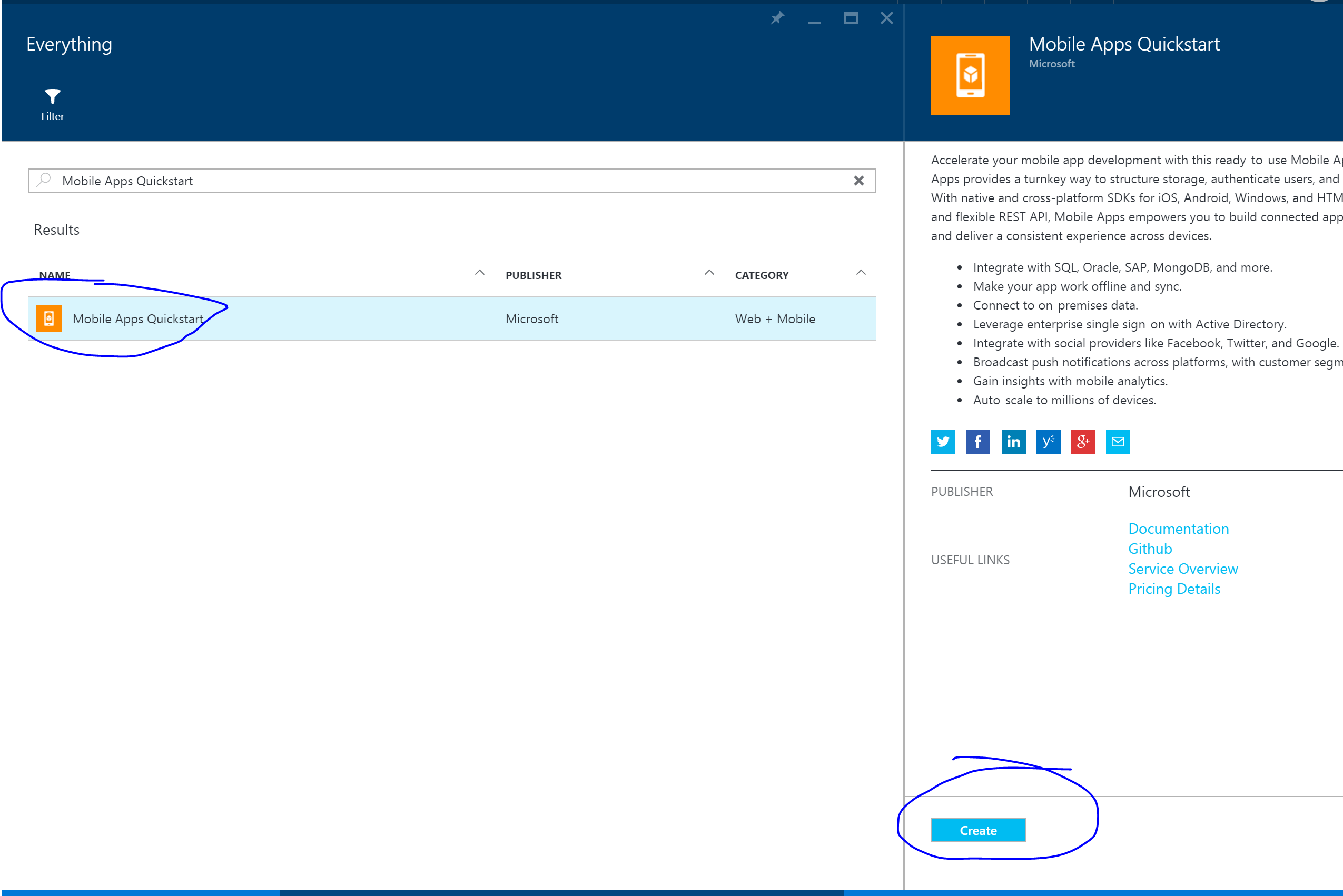
Tap on it and then tap on it again in the results:
Tap on Create
- Name your app (must be unique name, remember this for later)
- Select subscription.
- Create new resource group called XamarinDevDays
- Add to existing plan or create new plan
- Check Pin to Dashboard
- Tap Create
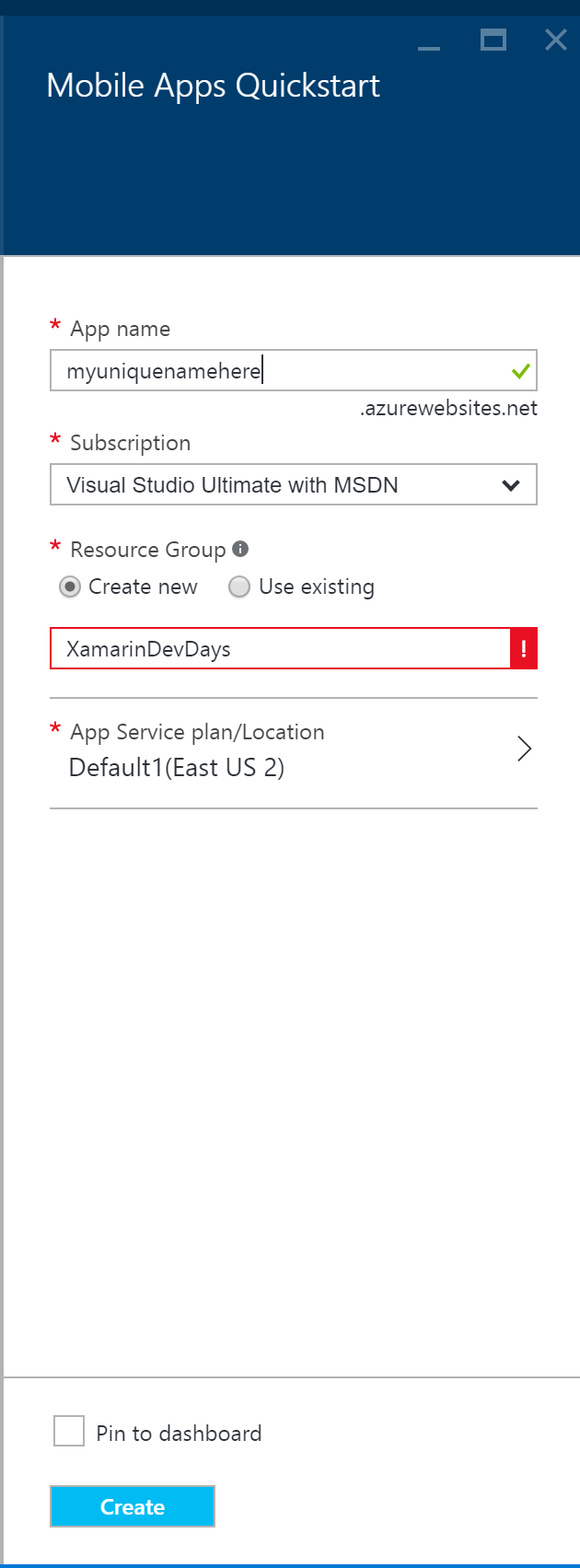
Now give it about 3-5 minutes and you will be completely setup.
Update code & run
- Open DevDaysTasks.sln.
- You will find DevDaysTasks/Helpers/Constants.cs
- Update with your app name and run!
Windows UWP SQLite
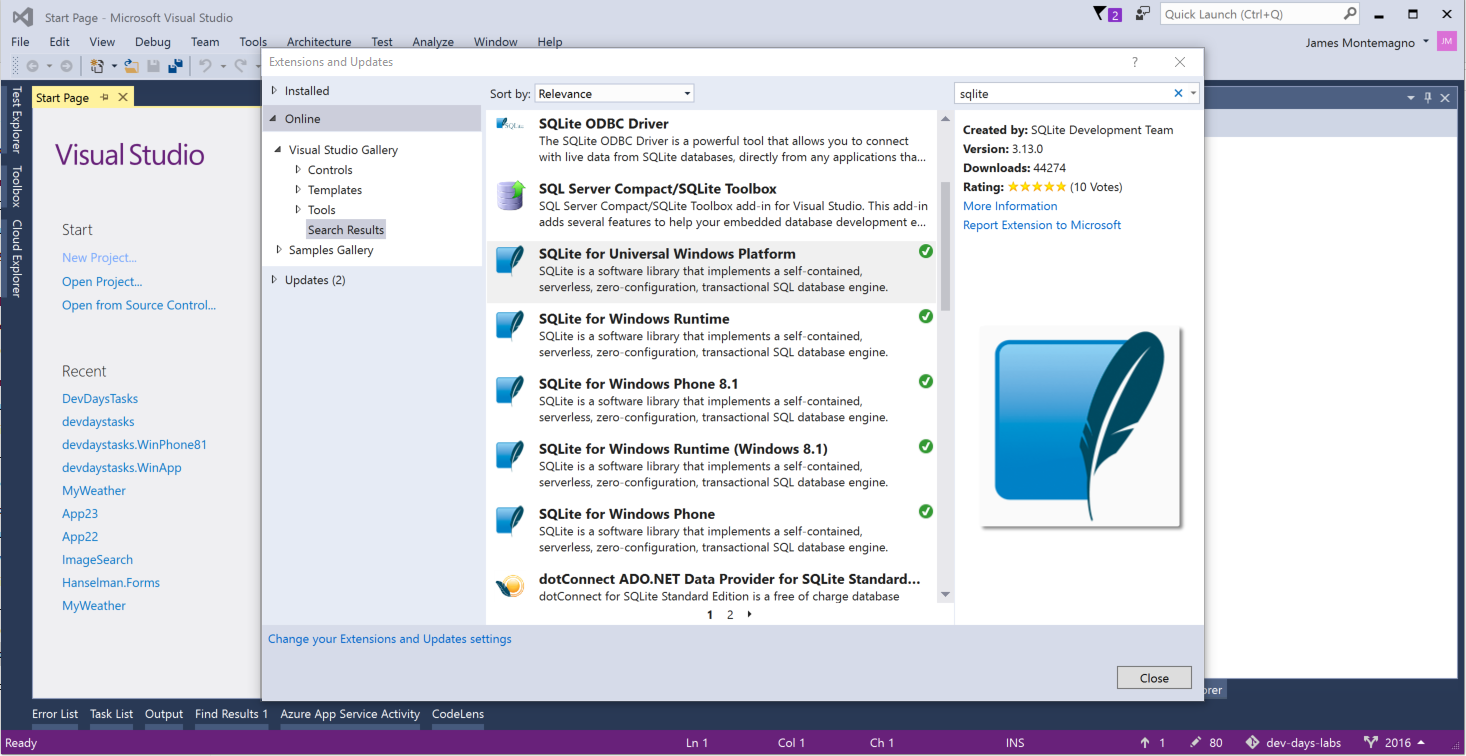
Inside of Visual Studio go to Tools->Extensions and Updates
Under Online->Visual Studio Gallery search for SQlite
Ensure you install SQLite for Universal Windows Platform (version 3.13.0).