
 James Montemagno
b117c7b1c1
Initial Commit
James Montemagno
b117c7b1c1
Initial Commit
|
10 년 전 | |
|---|---|---|
| .. | ||
| Images | 10 년 전 | |
| solution | 10 년 전 | |
| README.md | 10 년 전 | |
README.md
Xamarin.Forms
The Challenge
In this challenge you'll build the Magic Ball app shown in the Your First Xamarin.Forms App session. Will you succeed??
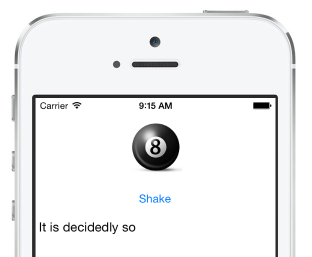
The app should run on iOS, Android or Windows Phone. You only need to demonstrate one platform to qualify for the prize - but show the code is all Xamarin.Forms :)
Xamarin's Developer Center has Intro to Xamarin.Forms and XAML docs that will help.
Bonus Challenge #1
Use the DependencyService to read the result using text-to-speech. Sample code for this can be found in the Todo app (see the ITextToSpeech interface and its implementations for iOS and Android).
Bonus Challenge #2
Use a CustomRenderer to add another button to tweet the result, similar to the TweetButton in this sample. It could say something like "Is my #Xamarin.Forms Dev Days Labs amazing?"" then append the result.
Don't forget to implement the platform-specific renderers for iOS and Android.
Challenge Walkthrough
Create a new Xamarin.Forms (PCL) solution (don't forget to update the NuGet package version to use the latest Xamarin.Forms release)
Add a new
XAML Content Pageto the common-code project:Add a
StackLayoutelement to contain the following controlsAdd a
Buttonto press (set theTextproperty)Add a
Labelto display the result (give it anx:Name)Add a
Clickedhandler (you'll implement this fully in the next step)Add other elements to make your app pretty :)
Copy over the following code into your page's code-behind file:
// http://en.wikipedia.org/wiki/Magic_8-Ball
string[] options = {" It is certain"
	, " It is decidedly so"
	, " Without a doubt"
	, " Yes definitely"
	, " You may rely on it"
	, " As I see it, yes"
	, " Most likely"
	, " Outlook good"
	, " Yes"
	, " Signs point to yes"

	, " Reply hazy try again"
	, " Ask again later"
	, " Better not tell you now"
	, " Cannot predict now"
	, " Concentrate and ask again"

	, " Don't count on it"
	, " My reply is no"
	, " My sources say no"
	, " Outlook not so good"
	, " Very doubtful "
};
Use
System.Randomto implement theClickedhandler so that it choose a random element from theoptionsarray and displays it in theLabel. You can refer to the label in code using thex:Nameyou chose.Don't forget to edit
App.csto replace the defaultContentPagewith your new XAML page.Run the app!